
Using Resources in Bridge
Who this is for
- Staff (Admins, Peers, Counselors) using Bridge
Overview
The Resources section in Bridge gives Staff quick access to community resources that can be searched, saved, and shared directly with Members.
Accessing Resources
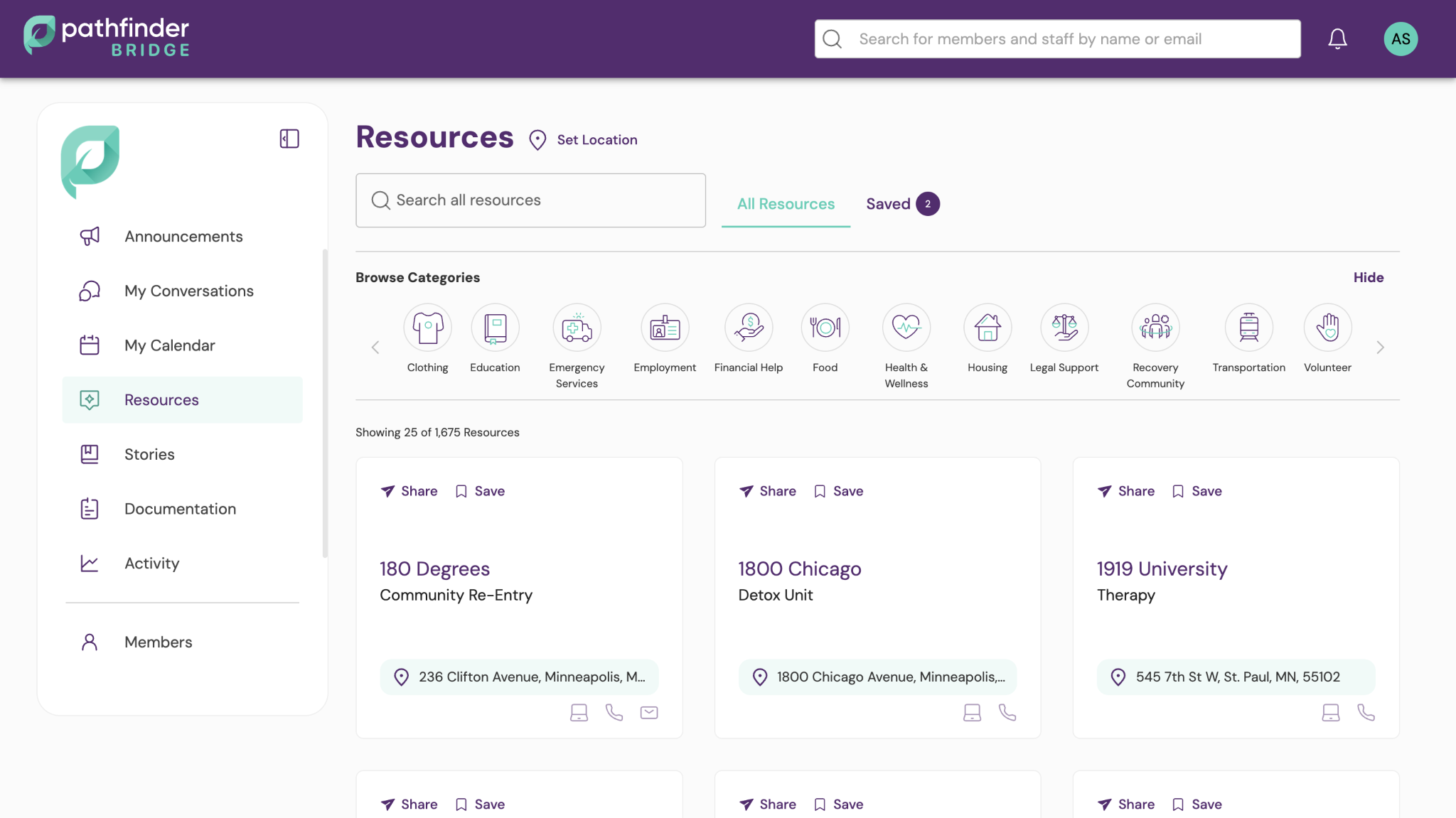
To access Resources, select Resources from the left-side navigation menu in Bridge.
Resources are organized into categories to make browsing easier. You can also search for resources by entering keywords in the search box.
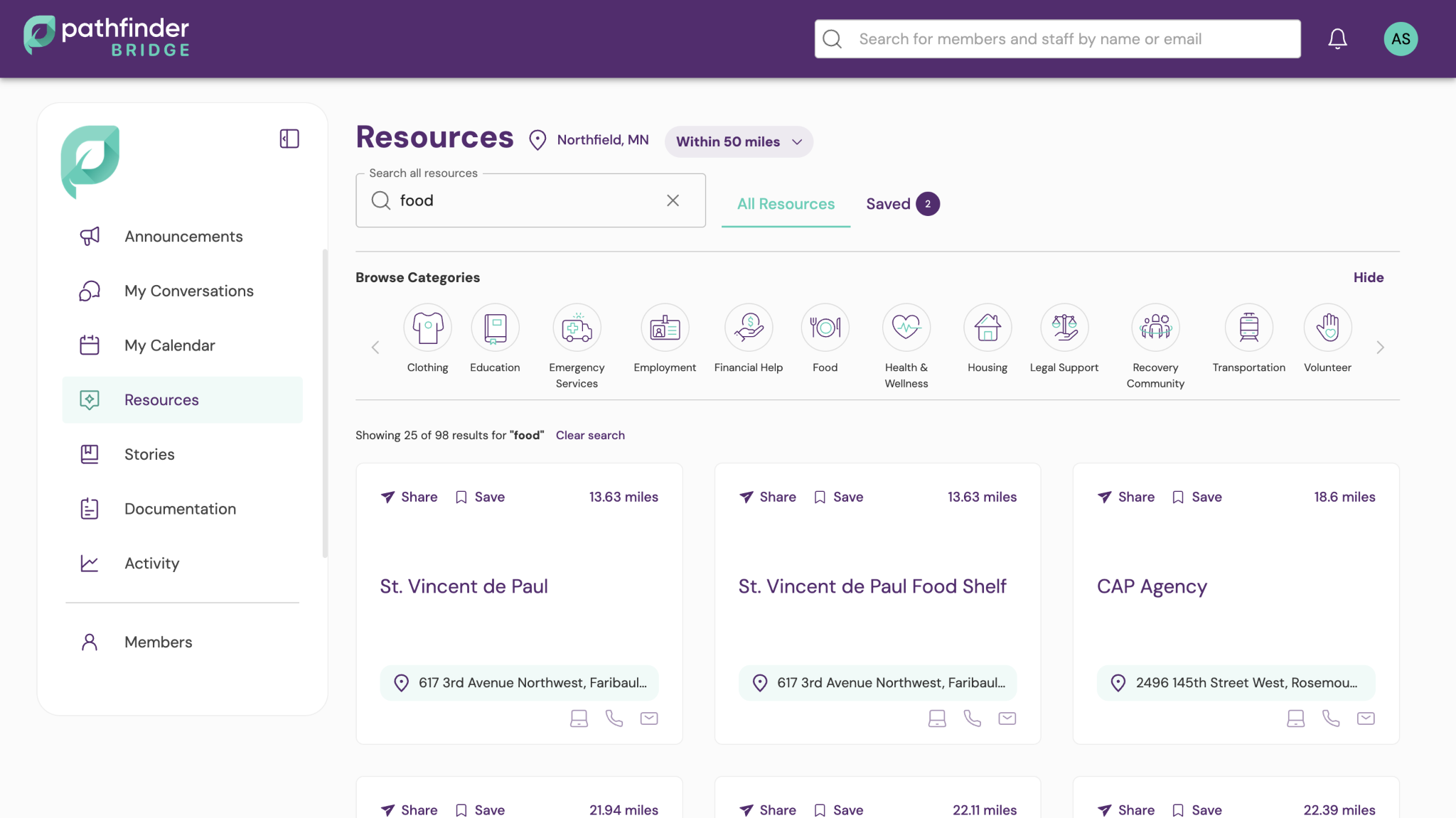
If you're looking for resources in a specific area, you can:
- Enter a geographic location
- Select a search radius
- View resources that match your criteria
Understanding Resource Cards
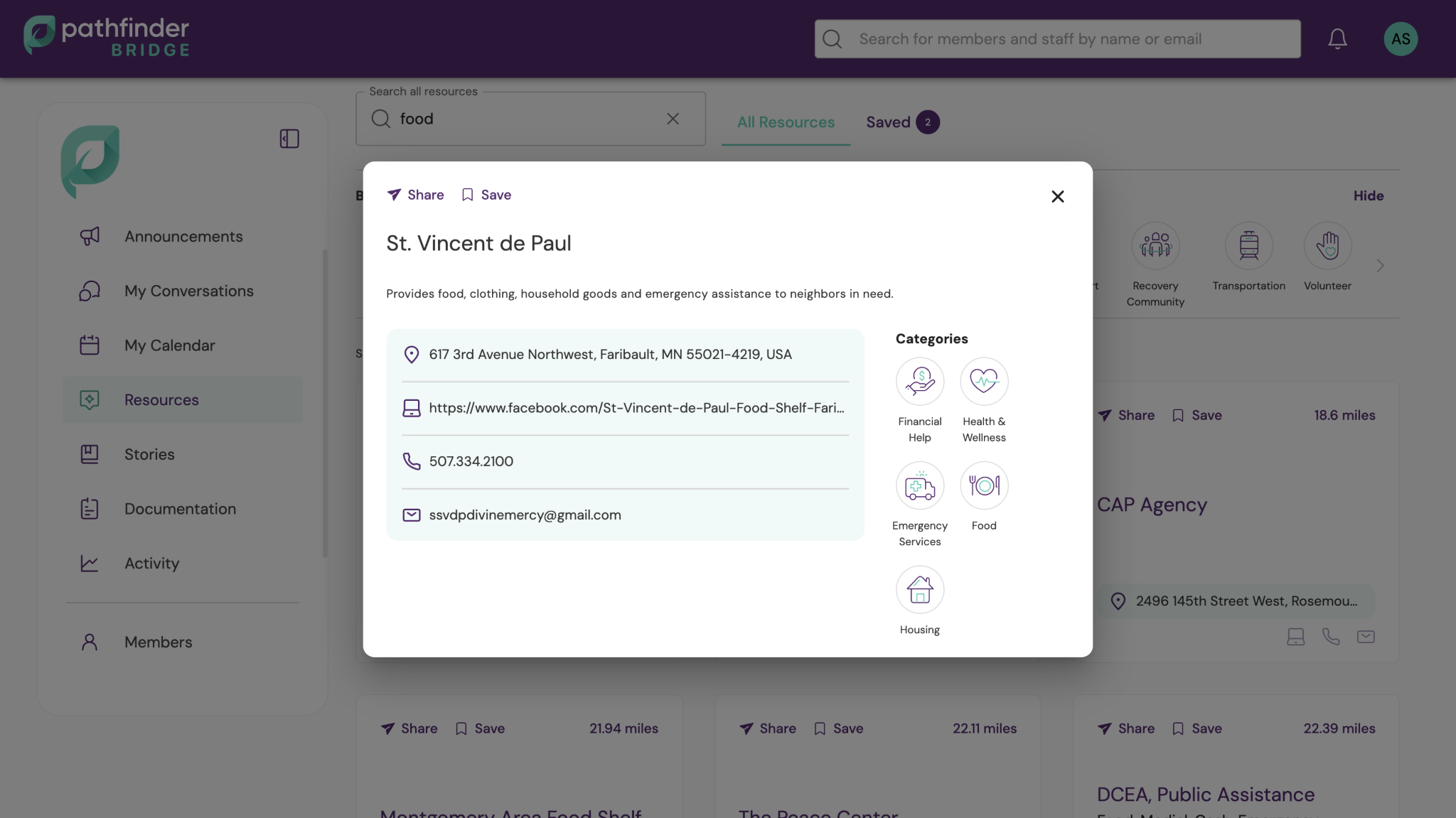
Each resource is displayed as a resource card containing information that may include:
- Resource name
- Description
- Website
- Phone number
- Email address
- Physical address
- Additional contact information
The information available will vary depending on the resource.
Saving Resources
If you frequently reference a resource, you can save it for quick access later.
- Locate the resource you would like to save.
- Select the Save option on the resource card.
- Access your saved resources whenever you need them.
Saved resources help Staff quickly find commonly used services without having to search again.
Sharing Resources with Members
Resources can be shared directly with Members from Bridge.
- Locate the resource you would like to share.
- Select Share on the resource card.
- Choose the Member you would like to send the resource to.
- Confirm the share action.
When a resource is shared, Bridge sends it as a chat message to the selected Member.
Members can view the shared resource within the Companion app and use the information provided to contact or learn more about the resource.
Tip: Use geolocation + category filters together to surface the most relevant local options for each client, then send directly from the resource card without leaving Bridge.
Troubleshooting
No resources match my search
If your search does not return any results:
- Verify that the keyword is spelled correctly.
- Try using a broader search term or fewer keywords.
- Adjust the location or increase the search distance.
- The resource you are looking for may not currently exist in the Resources database.
I can't find the Member I want to share a resource with
If a Member does not appear when sharing a resource:
- Confirm that the Member is active in Bridge.
- Verify that the Member has not been discharged or deactivated.
- Refresh your browser and try again.
- If the issue persists, contact your organization's administrator for assistance.